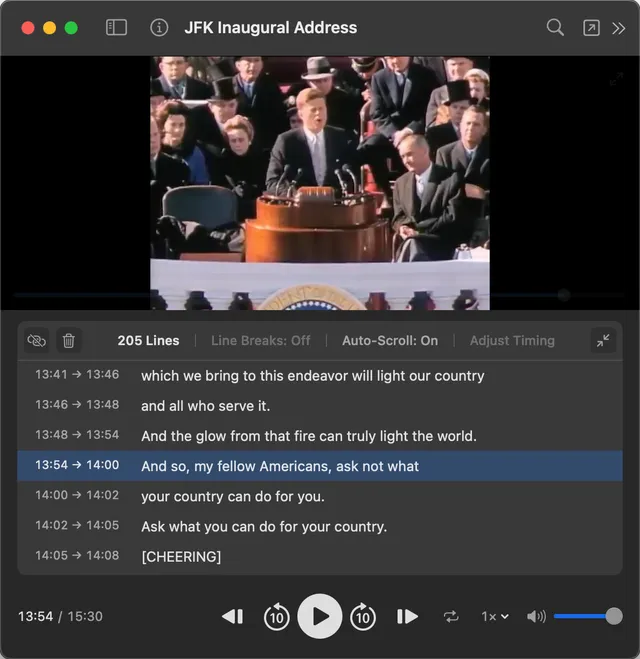
You know the transcript feature on YouTube. There’s a panel on the side that shows every line of dialogue with timestamps. You click a line, and the video jumps to that moment. You scroll through the text to skim the content without watching the whole thing. It’s one of the most useful features on the platform.
Now imagine you want that same experience for a file on your Mac. A lecture you recorded. A podcast episode you downloaded. An interview you transcribed. You have the audio or video, and you have a subtitle file, an SRT or VTT that came out of a transcription tool. All the pieces are there. You just need a player that puts them together the way YouTube does.
Except nothing seems to do it.
What You’ll Find If You Search
Most of the tools you’ll come across are transcription apps. MacWhisper, Whisper.cpp, Aiko. They do a great job turning audio into text. But once the transcript is generated and you have the SRT or VTT file, those tools have done their job. They’re not built to be media players with interactive, clickable transcripts.
On the other end, there are media players like VLC, IINA, and Movist. They can show subtitles during video playback, but only one line at a time as an overlay. There’s no transcript panel you can scroll through, and you can’t click a line to jump to it. For audio files, VLC requires a visualization workaround just to render subtitle text at all, and the result is clunky and fragile.
Some people resort to building their own solution. There are open-source JavaScript libraries that pair a WebVTT file with HTML5 audio or video and render an interactive transcript in a browser. It works, but it means hand-coding an HTML page for every file you want to use, which is not practical if you work with recordings regularly.
Others reach for professional video editors like DaVinci Resolve, which can display subtitles alongside video. But launching a full editing suite just to read along with a transcript is like driving a truck to the corner store.
The gap is clear: transcription tools handle the input, media players handle the playback, but nothing connects the two into a simple, interactive transcript experience for local files. And for local files, you also need it to work with audio, not just video, since most lectures, podcasts, and interviews are audio-only. Ideally you’d be able to search the transcript text too.
SubSeeker Does This
SubSeeker is a Mac app built around this exact use case. You load an audio or video file alongside its subtitle file, and you get a YouTube-like transcript for any local file on your Mac.
For audio files, SubSeeker displays a waveform with the interactive transcript below it. Every line is shown with its timestamp range. The current line is highlighted and auto-scrolls as playback advances. Click any other line, and playback jumps to that moment instantly.
For video files, the video plays at the top with the interactive transcript below. Same behavior. Full text visible, current line highlighted, click to jump. You can toggle between a single-line subtitle view and the full interactive transcript depending on how you want to use it.
You can also switch the interactive transcript on or off. If you just want a clean playback experience with a single subtitle line, toggle it off. If you want the full scrollable, clickable transcript, toggle it on. It’s a mode, not a permanent layout.
Searching Inside the Transcript
Once you have a full transcript displayed, searching becomes the natural next step. SubSeeker has a search panel that lets you type a word or phrase and see every occurrence highlighted with timestamps. Click any result, and playback jumps there.
This works within a single file, but it also works across your entire library. If you have dozens of recordings with subtitle files, you can search once and find results from every file. Click a result from a different file, and that file opens at the exact timestamp. One search, every recording, every match.
How to Set It Up
The setup is simple:
- Get your audio or video file and its subtitle file. If you don’t have a subtitle file yet, use any transcription tool that outputs SRT, VTT, or LRC. MacWhisper, Whisper, Aiko, or any speech-to-text service will work.
- Put both files in the same folder with the same filename. For example,
interview-jan.m4aandinterview-jan.srt. - Drag the folder into SubSeeker.
- SubSeeker automatically pairs the media and subtitle files by matching filenames.
- Click the file in your library, toggle on the interactive transcript, and you’re done.
From that point forward, you have a fully interactive, clickable, searchable transcript for that recording. Add more folders with more files, and your searchable library grows.
Supported Formats
SubSeeker works with SRT, VTT, LRC, ASS, and SSA subtitle formats. It plays common audio formats like MP3, M4A, and WAV, and video formats like MP4, MOV, and MKV. Whatever your transcription tool outputs and whatever format your recordings are in, it handles them.
Get SubSeeker
SubSeeker is available on the Mac App Store.