If you have a long recording like a lecture, a podcast, an interview, or a speech, and you need to find the one moment where a specific topic was discussed, you already know the problem. You scrub the playback bar back and forth, listening at 2x speed, trying to land on the right section. If you have multiple recordings, it gets worse. You’re opening files one by one, scanning through each, hoping you remember which recording it was in.
There’s no built-in way on macOS to search the contents of an audio or video file by the words that were spoken. Spotlight can search file names and document text, but it can’t search inside a recording. So how do you actually find a specific moment in a media file without listening to the whole thing?
The Answer Is Already on Your Disk
If you’ve ever used a transcription tool like Whisper, MacWhisper, Aiko, or any speech-to-text service, you probably have subtitle files sitting alongside your recordings right now. These are files with extensions like .srt, .vtt, or .lrc. They’re plain text files that contain every word spoken in the recording, lined up with timestamps.
An SRT file looks something like this:
1
00:03:12,000 --> 00:03:17,000
So the key takeaway from today's lecture is that

2
00:03:17,000 --> 00:03:22,000
mitochondria play a much larger role than we previously thought
Every line is timestamped. Every word is searchable. The subtitle file is essentially a searchable index of your entire recording. You just need a player that lets you search it.
Why Most Players Don’t Help
You might think you could just open the subtitle file in a text editor, search for the word you need, note the timestamp, and then manually seek to that position in your media player. That works, but it’s slow and clumsy, especially when you’re doing it repeatedly across many files.
What about VLC? VLC can display subtitles, but there’s no way to search the subtitle text or click a line to jump to that point. It’s a playback tool, not a search tool. For audio files it’s even worse, since subtitles won’t appear at all unless you turn on visualizations, and even then the experience is unreliable.
IINA, Movist, and most other Mac media players have the same limitation. Subtitles are treated as an overlay for video, not as a searchable, interactive part of the player. And none of them handle audio files with subtitles as a first-class use case.
Searching Subtitles and Jumping to Timestamps
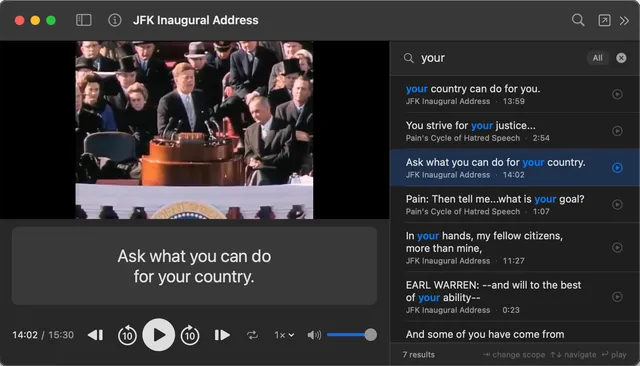
This is what SubSeeker was built to do. It’s a Mac app that pairs your audio or video files with their subtitle files and makes the text fully searchable. Type a word or phrase, and every occurrence appears instantly. Click a result, and playback jumps to that exact timestamp. No scrubbing, no guessing, no opening files in a text editor to find a timecode.
It works with audio files too, not just video. If you have an MP3 of a lecture and an SRT file from a transcription, SubSeeker plays the audio with a waveform display and shows the subtitle text alongside it.
Searching Across Multiple Files
The problem gets harder when you have a collection of recordings. A semester of lecture recordings. A backlog of podcast episodes. Dozens of interview transcripts. You know the topic was discussed somewhere, but you don’t remember which file.
SubSeeker lets you search across every subtitle file in your library at once. Type a word, and results come back from every file, each showing the file name, the matching text, and the timestamp. Click any result, and that file opens at the exact moment. One search, every recording, every match.
You build your library by dragging folders from Finder into SubSeeker. It automatically pairs media files with subtitle files that share the same filename. If you have lecture-05.mp3 and lecture-05.srt in the same folder, they’re linked automatically. Your files stay where they are. Nothing gets copied or moved.
The Workflow
The complete workflow looks like this:
- Record or download your audio or video.
- Generate a subtitle file using any transcription tool (Whisper, MacWhisper, Aiko, or any service that outputs SRT, VTT, or LRC files).
- Put the media file and subtitle file in the same folder with the same filename.
- Drag the folder into SubSeeker.
- Search.
From that point on, every word in every recording is searchable. You can find any moment across your entire collection in seconds.
Searching Lectures, Podcasts, and Interviews
If you record lectures, you can stop scrubbing through hours of audio to find the one moment you need. Transcribe once, drag the folder into SubSeeker, and every word is searchable for the rest of the semester.
If you have dozens of podcast episodes with transcripts, you can search across all of them at once instead of opening files one by one.
If you transcribed your interviews with Whisper and now have a folder full of SRT files, SubSeeker turns them into a searchable archive you can actually use.
Get SubSeeker
SubSeeker is available on the Mac App Store.